

After the ThunderCore mainnet stops producing blocks, eligible assets will be migrated to BNB Smart Chain (BSC) or the asset’s corresponding source network.
Official Migration Site
ThunderCore Asset Migration: https://migration.thundercore.com
If you have any questions, please contact User Support
⚠️ Beware of phishing and fake migration websites. Always check that you are using the official ThunderCore Migration site.
⚠️ Never share your seed phrase, recovery phrase, private key, or wallet password with ANYONE, including ThunderCore.
Migration Period
Start: September 1, 2026
End: December 1, 2026
Who Should Use This Site?
How your assets are migrated depends on where they were held at the final block.
Assets in a “wallet you control”
- Regular wallet (EOA), 5,000 TT or more in value: eligible assets are automatically migrated. Use this site to check the result.
- Regular wallet (EOA), less than 5,000 TT in value: use this site for Manual Migration.
- ThunderBridge assets: use this site for Manual Migration to their respective source chains.
- Official staking (veTT): your position is settled at the final block and migrated according to the migration rules.
- Assets held in a smart contract or smart contract wallet: submit a Support ticket for assistance.
Assets on an “exchange or custodial service”
- If your assets were held on an exchange or other custodial service, you should follow the service’s instructions or contact them directly.
- These assets will NOT appear as assets you can migrate from your own wallet on this site.
What Can You Do Here?
You can:
- Check assets to migrate
- Complete Manual Migration
- Check migration status and history
- Unwrap WETH / WBNB if needed
How to Use the Migration Site
Step 0 — Check Where Your Assets Are
The Migration site only works with assets in a wallet you control.
If your assets are on an exchange, please follow the exchange’s instructions.

Step 1 — Connect Wallet
Go to https://migration.thundercore.com and connect the same wallet address that held your assets on ThunderCore.
Before continuing, check:
Is this the address that held my ThunderCore assets at the final block? See https://explorer-mainnet.thundercore.com/
If you connect a different address, the site will not show the assets linked to your original address.
Step 2 — Sign In
After you connect your wallet, the site will ask you to sign a message.
‼️This is not a transfer.
The signature is used to confirm that you control the connected wallet address.
Always check the message shown in your wallet before signing.
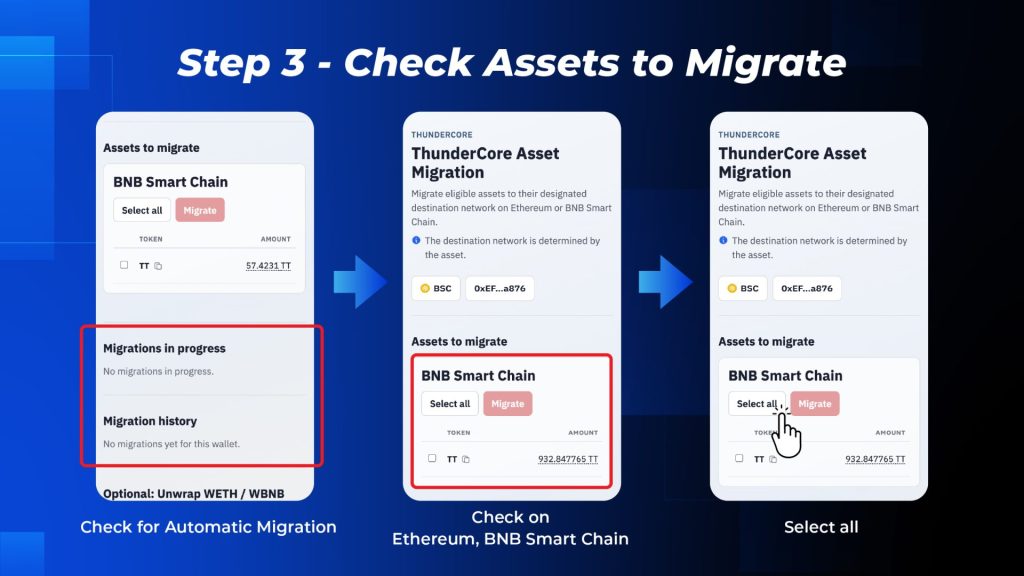
Step 3 — Check Assets to Migrate
After you sign in, the site will show the assets that require manual migration.
Check the:
- Token
- Amount
- Destination network
- Status
Eligible assets with a value of 5,000 TT or more may already have been moved through Automatic Migration. You do not need to migrate those balances again.
Eligible assets with a value of less than 5,000 TT, as well as supported ThunderBridge-backed assets, require Manual Migration through this site.
You can check completed automatic and manual migrations in Migration history.
Step 4 — Prepare Gas
Some manual migrations require a transaction on Ethereum or BNB Smart Chain.
You may need a small amount of:
- ETH for Ethereum gas
- BNB for BNB Smart Chain gas
We recommend having enough gas in your wallet before you start.
‼️If you do not have enough gas, the migration transaction may fail.
If you do not have enough gas, you can:
- Add ETH or BNB and try again; or
- Contact Support if you cannot complete the transaction yourself.
Support may require additional time to review individual cases, and a processing time cannot be guaranteed.

Step 5 — Confirm the Migration Transaction
For assets that require Manual Migration, select the assets you want to migrate and click Migrate.
Before confirming the transaction in your wallet, check:
- Network
- Connected address
- Asset
- Amount
- Transaction details
Only confirm the transaction after you have checked that the information is correct.

Step 6 — Complete the Remaining Steps
A successful migration transaction does not always mean the full process is complete.
The site may still need to:
- Ask you to sign a confirmation message
- Register the migration
- Wait for blockchain confirmations
- Update the status to Migrated / Completed
Keep the page open until the site shows that the migration is complete.

Step 7 — Check Migrations in progress
If a migration has started but is still waiting for confirmation or processing, it will appear under Migrations in progress.
If an asset appears here, check its status before trying again.
Do not immediately submit the same migration transaction again.
Step 8 — Check Migration history
Completed migrations appear under Migration history.
The history may include:
- Automatically migrated — migrated automatically by the system
- Manually migrated — migrated by you through the Migration site
If an expected asset does not appear under Assets to migrate, also check Migrations in progress and Migration history.
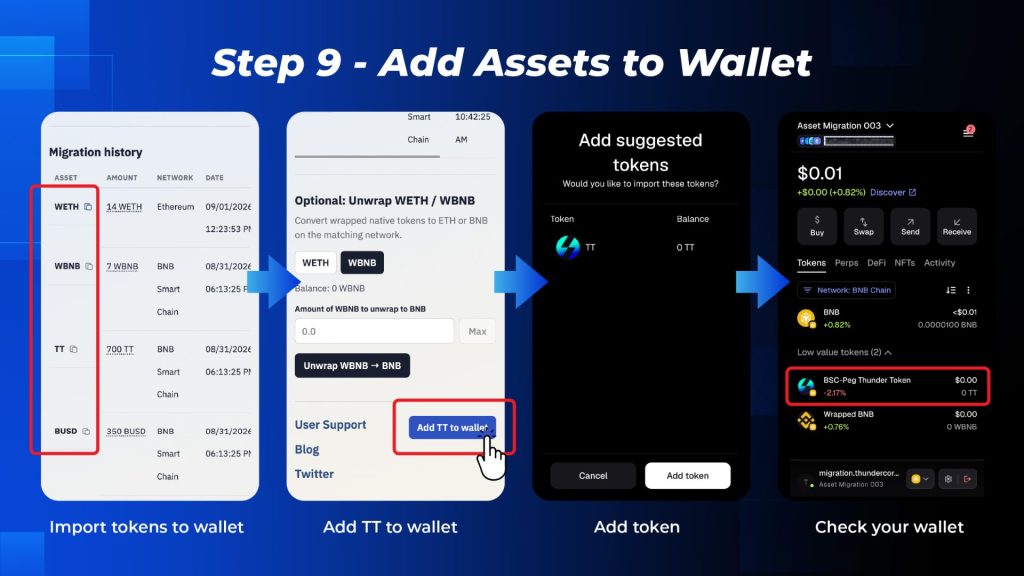
Step 9 — Add Assets to Wallet
After the Migration is complete, you may need to add the migrated tokens to your wallet before they appear in your asset list.
1. Add TT to Wallet
For TT, scroll to the bottom of the Migration page and click Add TT to wallet.
Your wallet will open and ask you to confirm adding TT. After you confirm, TT should appear in your wallet on BNB Smart Chain.
2. Add Other Tokens Manually
For other migrated tokens:
- Find the token under Assets or Migration history.
- Click the copy icon next to the token name to copy the token contract address.
- Open your wallet and choose Import Token or Add Token.
- Paste the contract address.
- Confirm the token details and add it to your wallet.
Always copy the token contract address from the official ThunderCore Migration site. Do not use a contract address from an unknown source.
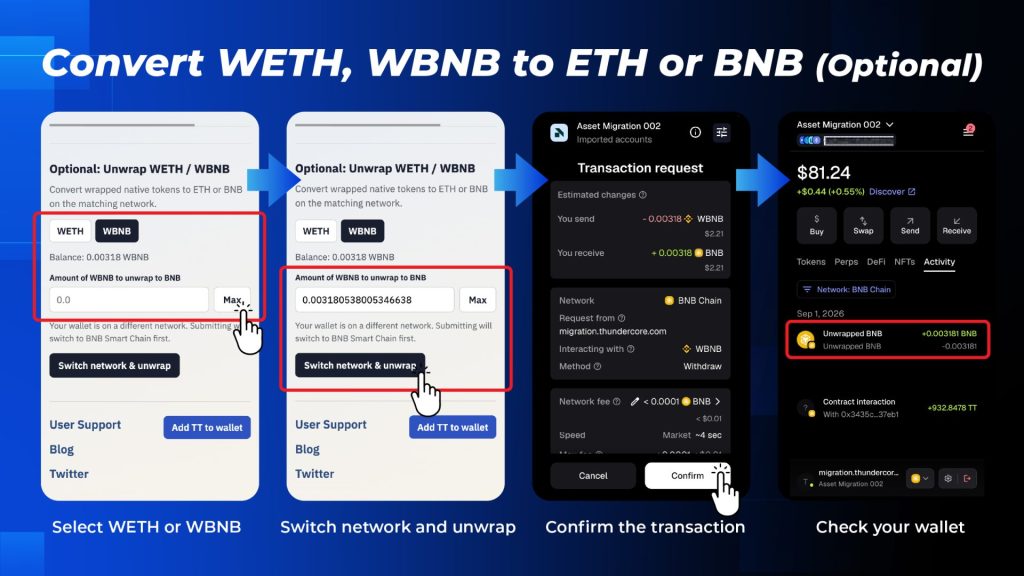
Convert WETH or WBNB to ETH or BNB (Optional)
Some ThunderBridge-backed assets may be migrated as:
- WETH on Ethereum
- WBNB on BNB Smart Chain
WETH and WBNB are valid on-chain assets. You do not need to convert them to complete the migration.
If you want native ETH or BNB, you can convert:
- WETH → ETH
- WBNB → BNB
This conversion is also a blockchain transaction and requires a small amount of ETH or BNB for gas.
Security Tips
🔒Never Share Your Seed Phrase or Private Key
ThunderCore Asset Migration will never ask you to provide your:
- Seed phrase
- Recovery phrase
- Private key
- Wallet password
The official Migration process only asks you to use your wallet for necessary:
- Wallet connections
- Signatures
- Blockchain transactions
Do not continue if any website or person asks for your seed phrase or private key.
🔒Do Not Send Assets to an Unknown “Migration Address”
The normal Migration process does not require you to send all your TT or other assets to:
- A ThunderCore team address
- A Support address
- A Telegram admin
- A so-called “migration address”
Do not follow private messages asking you to send assets to an address before they can be migrated.
🔒Use Only the Official Migration Site
Always check that you are using:
Be careful with Migration links from:
- Telegram private messages
- Search ads
- Unknown X or Discord posts
- Search results where you have not checked the domain
Always check the website address before connecting your wallet or signing a transaction.
FAQs
1. Do I need to migrate my assets myself?
It depends on the type of asset and where you hold it.
TT in your own ThunderCore wallet
5,000 TT or more
Eligible TT balances are moved through Automatic Migration to the same address on BNB Smart Chain.
You normally do not need to manually migrate this TT again.
Less than 5,000 TT
You need to use ThunderCore Asset Migration to complete Manual Migration.
After migration, you will receive BEP20-TT at the same address on BNB Smart Chain.
The same wallet may have both automatic and manual migrations. For example, some TT may already have been migrated automatically while other eligible assets still require Manual Migration.
You can check both automatic and manual migrations in Migration history.
2. My TT is on an exchange. Do I need to use this site?
Usually, no.
If your TT is held on Upbit, Bithumb, HTX, KuCoin, or another centralized exchange, you do not directly control the exchange wallet address.
Because of this, your exchange balance will not appear on your personal Migration page.
If you cannot see TT held on an exchange on the Migration site, this does not mean the assets are lost.
Each exchange handles its own TT migration arrangements.
Check the exchange’s official announcements for:
- Whether it supports the TT migration
- Whether you need to withdraw your TT
- Which withdrawal networks are supported
- Any relevant deadlines
ThunderCore Asset Migration is mainly for assets held in a wallet you control.
3. Which wallet should I connect to?
Connect the same EVM address that held your ThunderCore assets.
For example, if your ThunderCore address was:
0x1234…abcd
Connect the same address on Ethereum or BNB Smart Chain:
0x1234…abcd
Do not create a new BSC address for the Migration.
ThunderCore, Ethereum, and BNB Smart Chain use EVM addresses. The same private key or seed phrase controls the same address across these networks.
4. What if the site shows “No Assets to migrate”?
“No Assets to migrate” does not mean your assets are lost.
First, check that you connected the same address that held the assets at the ThunderCore final block.
Other possible reasons include:
- You connected the wrong wallet address
- The assets were held on an exchange or other custodial service
- Manual Migration is not yet available for the asset
- The asset is not supported by the Migration
- The TT was already automatically migrated — check Migration history
- The asset is currently being migrated — check Migrations in progress
- The asset was already manually migrated — check Migration history
- The asset was held in a smart contract rather than a normal wallet address
If you still cannot find the asset after checking these cases, contact Support.
5. I cannot see a token in my wallet after Migration. What should I do?
If your wallet does not show the token, it does not mean the Migration failed.
First, check:
- Migration history shows that the Migration is complete.
- Your wallet is connected to the correct Destination network.
- You are viewing the same wallet address used for the Migration.
For TT
Scroll to the bottom of the Migration page and click Add TT to wallet.
Your wallet will ask you to confirm adding TT.
For other tokens
- Find the token on the Migration page.
- Click the copy icon next to the token name to copy its contract address.
- Open your wallet and select Import Token or Add Token.
- Paste the token contract address.
- Confirm the token details and add it to your wallet.
If the token still does not appear, check whether your wallet is hiding low-value assets and turn on the option to show them.
Always get token contract addresses from the official ThunderCore Migration site. Do not use a contract address from an unknown source.
6. Where will my ThunderBridge assets go?
ThunderBridge-backed assets are handled differently from TT.
Eligible assets are generally migrated to their corresponding source network instead of all being moved to BNB Smart Chain.
For example, you may receive:
- WETH on Ethereum
- WBNB on BNB Smart Chain
- Another corresponding underlying asset
Before migrating, check:
Asset → Destination network → Amount
Do not rely only on the token name.
7. How is veTT handled?
veTT staking positions are settled based on their status at the ThunderCore final block.
The settlement amount is based on the amount of TT that the staking contract’s leave function would transfer at the final block. This also includes eligible amounts that were already unstaked but waiting to be withdrawn.
Because of this, the TT amount shown for Migration may not be the same as the staking principal you previously saw.
The final-block settlement amount is used for the Migration.
8. What if my assets were held in a smart contract?
There are two different situations:
Smart wallet
A wallet controlled by a smart contract. It may not be supported by the normal Migration flow.
Assets held inside a smart contract
For example, assets held in a DeFi contract, protocol contract, or other application contract.
These assets are not the same as a normal EOA wallet balance.
If your assets were not held directly in a normal wallet address, do not assume they will be migrated in the same way as a normal wallet balance.
Please contact Support for help with these cases.
9. Which assets are covered by the Migration?
ThunderCore Asset Migration does not migrate every token and NFT on ThunderCore.
The main assets covered are:
- TT
- veTT
- Supported ThunderBridge-backed assets
Third-party assets such as:
- Tokens
- NFTs
- Smart-contract positions
should not be assumed to be included in the ThunderCore Migration.
10. Why do I need to sign another message after the Migration transaction?
After the Migration transaction, the site may ask you to sign an attestation.
An attestation is a signed message used to confirm the Migration. It is normally not another token transfer.
However, always check what your wallet asks you to sign.
If you unexpectedly see:
- Token approval
- Token transfer
- Unlimited allowance
- An unknown contract transaction
do not continue until you have checked the request.
11. The Migration stopped or showed an error. Should I click Try Again?
If you already submitted a blockchain transaction, do not immediately submit the same transaction again.
First:
- Refresh the Migration page.
- Check Migrations in progress.
- Check Migration history.
- Check the transaction hash on the blockchain explorer.
Paying gas does not mean the Migration was completed. A blockchain transaction can fail even if gas was used.
Some errors can also happen after the blockchain transaction has already succeeded.
If the transaction succeeded but the Migration still does not appear after refreshing the page, contact Support and provide your wallet address and transaction hash.
12. Is the Migration 1:1?
Yes. Eligible TT is migrated at a 1:1 ratio.
For example:
1 TT → 1 BEP20-TT
There is no conversion ratio applied to your eligible TT balance.
13. When is my balance measured?
Balances are determined at the ThunderCore mainnet final block.
Your eligible balance is based on what the address held at that block, not an earlier or later balance.
For veTT, the settlement amount is also calculated based on the staking position at the final block.
14. I qualify for Automatic Migration. Do I need to do anything?
Normally, no.
If your TT balance qualifies for Automatic Migration, you do not need to:
- Submit a Migration transaction
- Claim the TT manually
- Sign an attestation
After Automatic Migration is complete, you can check it under Migration history.
You may still need to click Add TT to wallet before TT appears in your wallet token list.
15. What is the deadline for Manual Migration?
The deadline for Manual Migration is 2026/12/1.
We recommend completing your Migration before the deadline.
Requests submitted after the deadline may require individual review, and processing cannot be guaranteed.
16. Do I have to pay for gas?
Some Manual Migration steps require blockchain transactions, so you may need:
- ETH for transactions on Ethereum
- BNB for transactions on BNB Smart Chain
The exact gas fee depends on network conditions and cannot be fixed in advance.
If you do not have enough gas, the transaction may fail.
You can add ETH or BNB and try again. If you cannot complete the Migration yourself, contact Support.
17. Can I use the Migration site on mobile?
Yes.
Manual Migration can be completed on both desktop and mobile.
Make sure you use a supported wallet and connect the same address that held your ThunderCore assets at the final block.
18. Is there a minimum amount for Manual Migration?
No.
19. Can I migrate only part of one token balance?
No.
For each selected asset, the full eligible amount of that asset is migrated at once.
You can choose which asset types to migrate.
For example, if USDT and WETH are both listed under Assets to migrate, you can migrate USDT first and WETH later.
However, you cannot choose to migrate only part of your eligible USDT balance.
20. Why did I receive WETH or WBNB instead of ETH or BNB?
Some ThunderBridge-backed assets are migrated as wrapped native tokens, such as:
- WETH on Ethereum
- WBNB on BNB Smart Chain
These are valid on-chain assets. You do not need to unwrap them for the Migration to be complete.
If you want native ETH or BNB, you can convert:
- WETH → ETH
- WBNB → BNB
Unwrapping is also a blockchain transaction, so you need a small amount of:
- ETH on Ethereum
- BNB on BNB Smart Chain
for gas.
Disclaimer
- This guide is for general information about the ThunderCore Asset Migration and may be updated as the migration progresses.
- Users are responsible for checking their wallet address, network, asset, amount, and transaction details before proceeding. Blockchain transactions may be irreversible and may incur gas fees.
- The Migration site and related systems may experience technical errors, delays, interruptions, or unexpected behavior. ThunderCore does not guarantee uninterrupted or error-free operation and will not be responsible for losses caused by user error, third-party services, network conditions, or events beyond its reasonable control.
- Assets held on exchanges or custodial services are subject to their own procedures.
- Always refer to the latest official ThunderCore information and use only the official Migration site: https://migration.thundercore.com
- ThunderCore will never ask for your seed phrase, recovery phrase, private key, or wallet password.

ThunderCore Official